
Vitrine – Transparent screen lock for Windows
Look, don’t touch.
Vitrine is a transparent lock screen for Windows 10 and 11: keyboard and mouse are blocked while every program stays visible and keeps running. Unlock with Microsoft Entra ID, the Windows password, Windows Hello or your own FIDO2 security key, electronic signatures for line-of-business applications included – for laboratories, production lines and control rooms, free of charge under the MIT licence.
Coming soon: Download and source code will be published with the public release. If you would like to test ahead of it, sign up for the beta – we will get back to you personally.
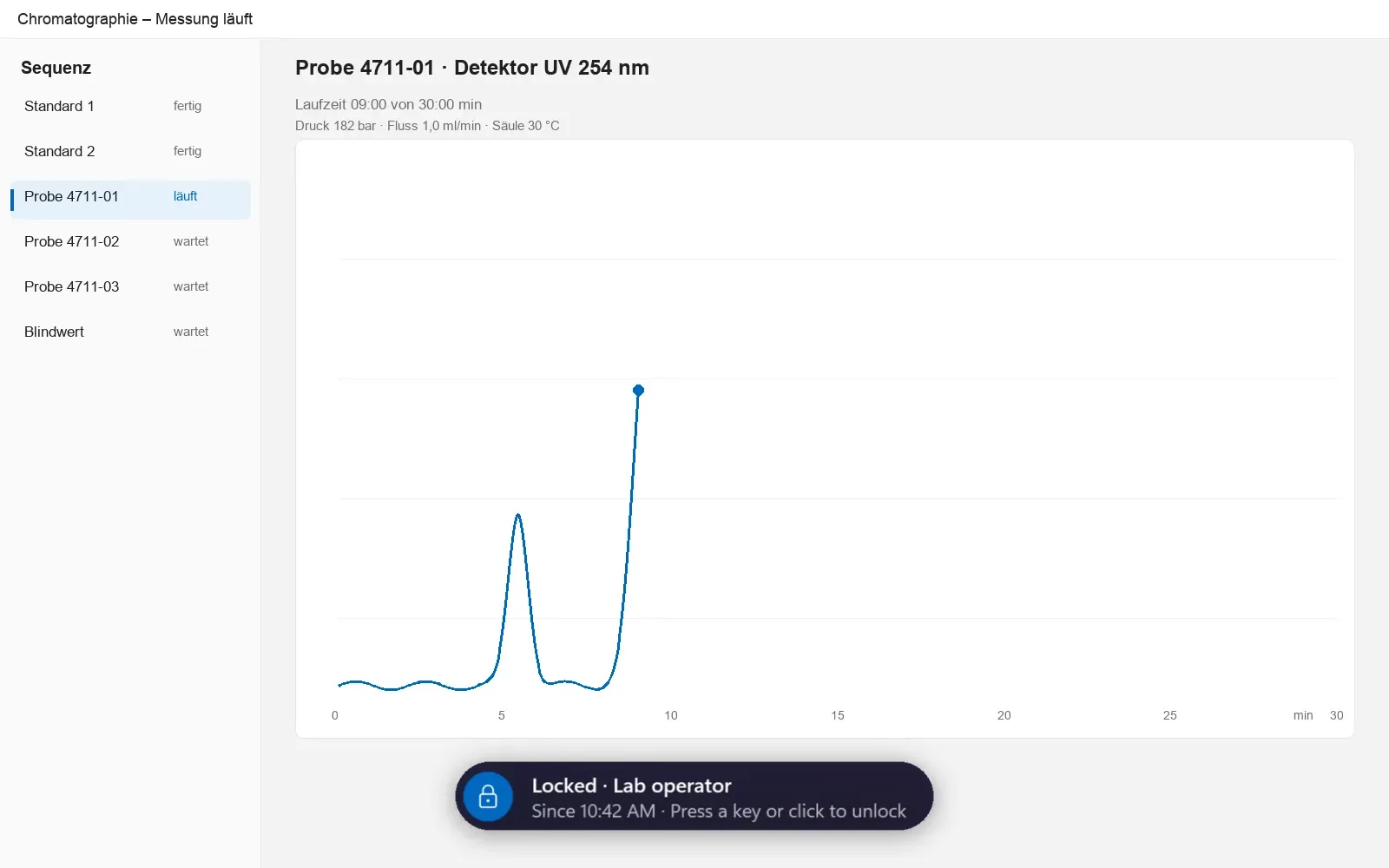
Why a transparent lock screen? Lock the PC, keep the screen visible
The normal Windows lock (Win+L) shows the lock screen, and nothing of the workstation stays visible. In a laboratory, on a production line or in a control room, you need to lock the PC but keep the screen visible: a measurement is running, a plant display or a dashboard is being monitored.
Vitrine therefore locks only the input. Keyboard and mouse are intercepted system-wide, the programs stay visible and keep running – look, don’t touch. You decide who may unlock: the signed-in person, administrators, groups and Entra app roles, single accounts or any valid account, restrictable to domains.
Features: lock keyboard and mouse, screen stays visible
-
Transparent or covered
Transparent with a light dimming (8 %) by default. For confidential content, the covered mode shows a large clock and the date – programs still keep running.
-
Cover areas, reveal programs
Rectangles stay covered while locked, e.g. the part of a LIMS window with patient names. Or everything is covered except the windows of selected programs.
-
Unlock with Entra ID, Windows or a security key
Microsoft Entra ID runs in Vitrine’s own sign-in window, which remembers nothing between people – with everything the tenant allows: passkeys and FIDO2 keys, Authenticator, MFA. Plus the Windows password, the Windows sign-in dialog (smartcards too), Windows Hello and a FIDO2 security key registered for Vitrine.
-
Your own security keys without Entra ID
An authorised person registers FIDO2 keys for Vitrine – locally on the computer or once for all computers in Active Directory, without an app registration in Entra ID and also without a network. The service checks every sign-in and resolves the person and their groups; the key’s PIN is always required.
-
Lock in many ways
Ctrl+Alt+L, notification area, idle time, schedule, at startup, as a screen saver,
Vitrine.exe --lockor the local interface; optionally Win+L locks with Vitrine instead of Windows. -
Electronic signatures
Line-of-business applications such as a LIMS request a signature over a local interface. Person, time, reason and meaning go into the audit log. For the Windows password, Entra ID and registered security keys, the service checks the sign-in itself.
-
Audit log signed by the service
Every lock, unlock, failed attempt and signature with UTC time, person and method. The service writes the log and signs every entry (ECDSA P-256 with a machine key only it holds); users can only read. Sequence numbers and an anchor outside the file make changes, gaps and a cut-off end visible, and
Vitrine.exe --verify-logverifies with the public key. A copy on a network share and the Windows event log add independent records. -
Roles and accountability
Separate roles for configuration administrators, security key registrars and auditors (read and export only), optionally with no rights for local administrators. Emergency sign-in for defined groups only with a reason, configuration changes recorded with old and new values and an optional mandatory reason, the responsible person in the log, and an authorization report as HTML to sign and as CSV.
-
Managed centrally
ADMX/ADML templates (English and German) with 76 policies for Group Policy and Intune; values set by policy are locked in the settings. Silent install with
msiexec /i Vitrine-x64.msi /qn. -
Lock on a separate desktop
Optionally Vitrine switches to a desktop of its own while locked: windows of other programs – elevated ones too – get no input there and cannot draw over the lock screen. In both lock modes Vitrine detects desktop switches while locked, logs them and switches back.
-
Service and watchdog
The service “ICT-Baden Vitrine” starts Vitrine at every sign-in. If Vitrine ends or hangs while locked, it disconnects the session and starts Vitrine locked again; without the service, a watchdog locks Windows.
-
Limit failed attempts
Growing waiting time from the third attempt; optionally lock Windows, sign out or shut down after too many attempts – this action is off by default and has to be configured.
-
Five languages
English, German, Spanish, French and Chinese (simplified); each user picks their own, or a policy sets it.
Where it is used: labs, production, control rooms
Typical workstations are measurement PCs in laboratories, operator PCs on production lines and control-room PCs whose displays must stay visible. Vitrine places one overlay per monitor, matched to each monitor’s scaling, and optionally shows a notice such as “Measurement running – please do not touch”. While locked, the screen stays on: no screen saver, no sleep.
For control rooms and measurement PCs, Vitrine can lock at startup. The keyboard and mouse lock also covers the Windows key, Alt+Tab, Alt+Esc, Alt+F4 and Ctrl+Esc, the mouse pointer is held, and Win+L does nothing while locked. On shared workstations anyone in a local or Entra group unlocks with their own key or account; whoever unlocked last is shown as the responsible person in the notification area and recorded in the log.
Pharma and GxP: 21 CFR Part 11 and EU GMP Annex 11
Vitrine provides building blocks that GxP workstations ask for: access limited to authorised people, unique identification, an audit trail signed by the service, electronic signatures with a meaning – for the Windows password, Entra ID and registered security keys the service checks the sign-in itself –, separate roles with an authorization report for periodic review, an emergency sign-in with a reason, and automatic locking after idle time or on a schedule. The shared unlock password is refused for signatures because it is not attributable to a person.
Vitrine is not a validated product, and ICT Baden makes no claim that using it meets 21 CFR Part 11, EU GMP Annex 11 or any other regulation. Validation and the risk assessment are the operator’s responsibility; code and log format are kept simple so that a validation is feasible. Without the service – that is, with the single Vitrine.exe – there is only a hash chain without a key, which the documentation explicitly rates as not Part 11 capable.
Switching from commercial transparent screen locks: Vitrine as an alternative
For organisations that use a commercial transparent screen lock today – as a stand-alone program or as a feature of an authentication suite: they all do the same job, input is blocked while the screen stays visible. Vitrine is an alternative to these transparent locks with the following properties:
- Vitrine is free of charge under the MIT licence, with no licence key, no licence server, no activation and no device binding; it sends no data to ICT Baden.
- Delivered as an MSI (silent with
msiexec /i Vitrine-x64.msi /qn), managed through 76 policies in ADMX/ADML templates for Group Policy and Intune. - Unlock with Microsoft Entra ID, the Windows password, Windows Hello or a FIDO2 security key registered for Vitrine – the latter without an Entra app and also without a network; electronic signatures for line-of-business applications.
- Tamper-evident audit log signed by the service, roles for settings, key registration and review, covered areas and “only selected programs visible”.
What switchers should know: Vitrine is a pre-release, not code-signed yet and not yet tested end to end on real devices. It has no smartcard or card-reader integration of its own – fingerprint and face work through Windows Hello, smartcards through the Windows sign-in dialog, anything else through your own sign-in plugin. Vitrine replaces only the transparent lock, not an authentication suite.
System requirements
- Operating system
- Windows 10 version 1809 (build 17763) or later, or Windows 11, 64-bit
- .NET
- not needed for the MSI and Vitrine.exe; the ZIP variant needs the .NET 10 Desktop Runtime
- Installation
- the MSI needs administrator rights; Vitrine.exe runs without installation
- Microsoft Entra ID
- optional, for unlocking, signatures and administrator confirmations: an app registration in your tenant (redirect URI
http://localhost, optional claimauth_time); the sign-in window needs the Microsoft Edge WebView2 Runtime; sign-in needs the network - Security keys
- optional: Windows 10 version 1903 or later, the Vitrine service (MSI installation) and FIDO2 keys with a PIN (USB or NFC); stored locally or in Active Directory
- Files
- Vitrine-x64.msi, Vitrine.exe, Vitrine-win-x64-framework.zip, SHA256SUMS.txt, bill of materials Vitrine-sbom.cdx.json
Limits, honestly
- Pre-release, not code-signed yet: Windows SmartScreen warns. Not yet tested end to end on real devices – Entra ID with MFA, Windows Hello, Remote Desktop, multiple monitors and the MSI on a clean machine are still open; security keys, the Active Directory store and the lock on a separate desktop have so far been checked by automated tests only.
- Vitrine’s own Microsoft sign-in window does not meet Conditional Access conditions that need the device identity (“compliant device”, “hybrid joined”) – exclude the Vitrine app from such policies or enable the Windows account broker on devices with a personal user.
- Ctrl+Alt+Del cannot be intercepted by any application. Vitrine hides Task Manager, Sign out, Change a password, the power button and Lock there and switches Win+L off while locked; Switch user remains.
- Vitrine runs as a normal user process supervised by a service; administrators can stop both.
- Transparent means visible – choose the covered mode or covered areas for confidential content.
- The audit log is tamper-evident, not tamper-proof: it makes changes visible but cannot prevent them. Administrators can stop the service and take over its key; the network copy and the forwarded event log are the second trail.
- Sign-ins with Entra ID need the network; keep the Windows password, Windows Hello or registered security keys enabled for offline cases.
- After failed attempts there is only a growing waiting time by default; an action after too many attempts has to be configured.
- Spanish, French and Chinese are machine translations and not yet reviewed by native speakers.
What Vitrine looks like
The screenshots are drawn by the real application with sample data; names and values are examples.
-
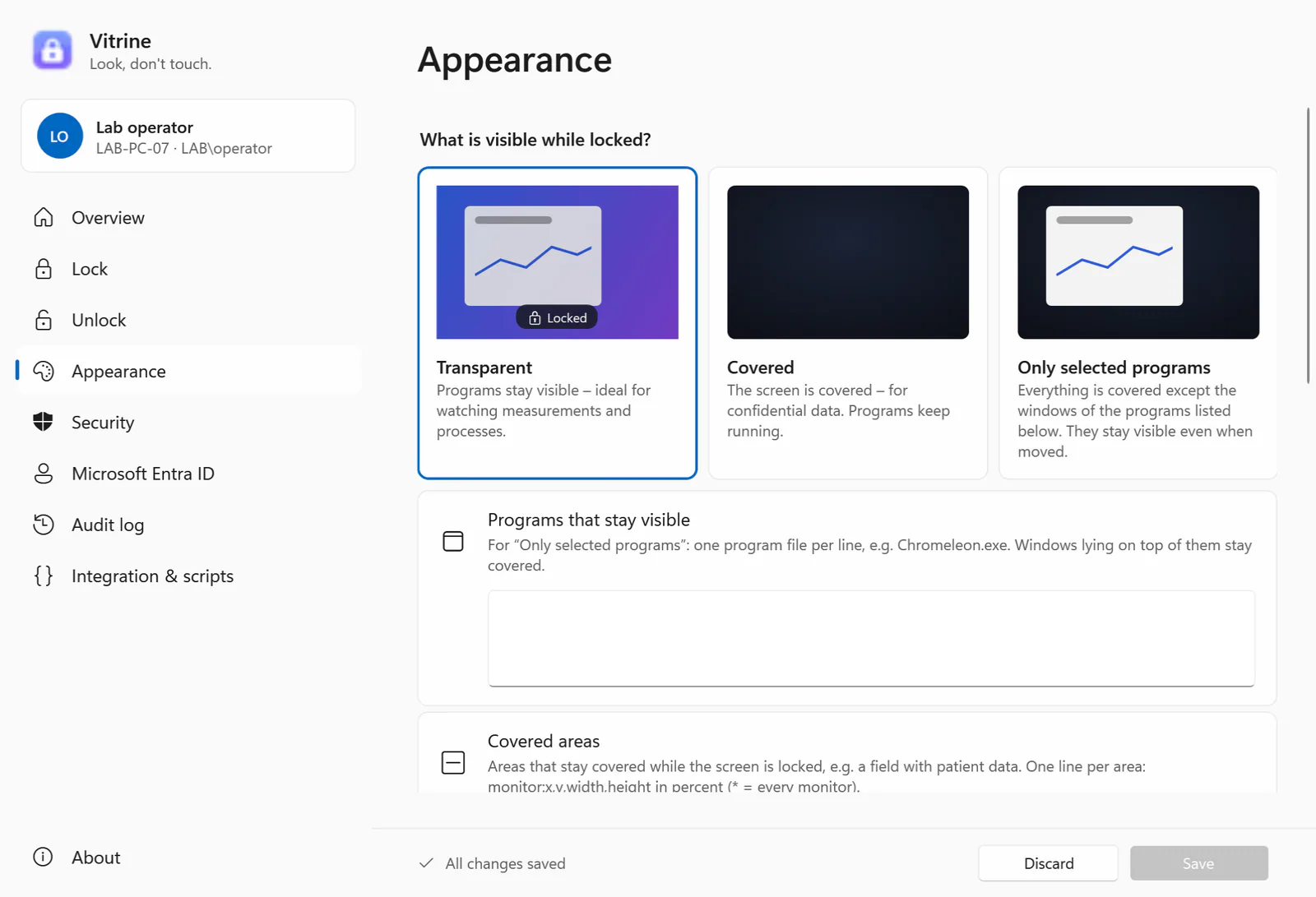
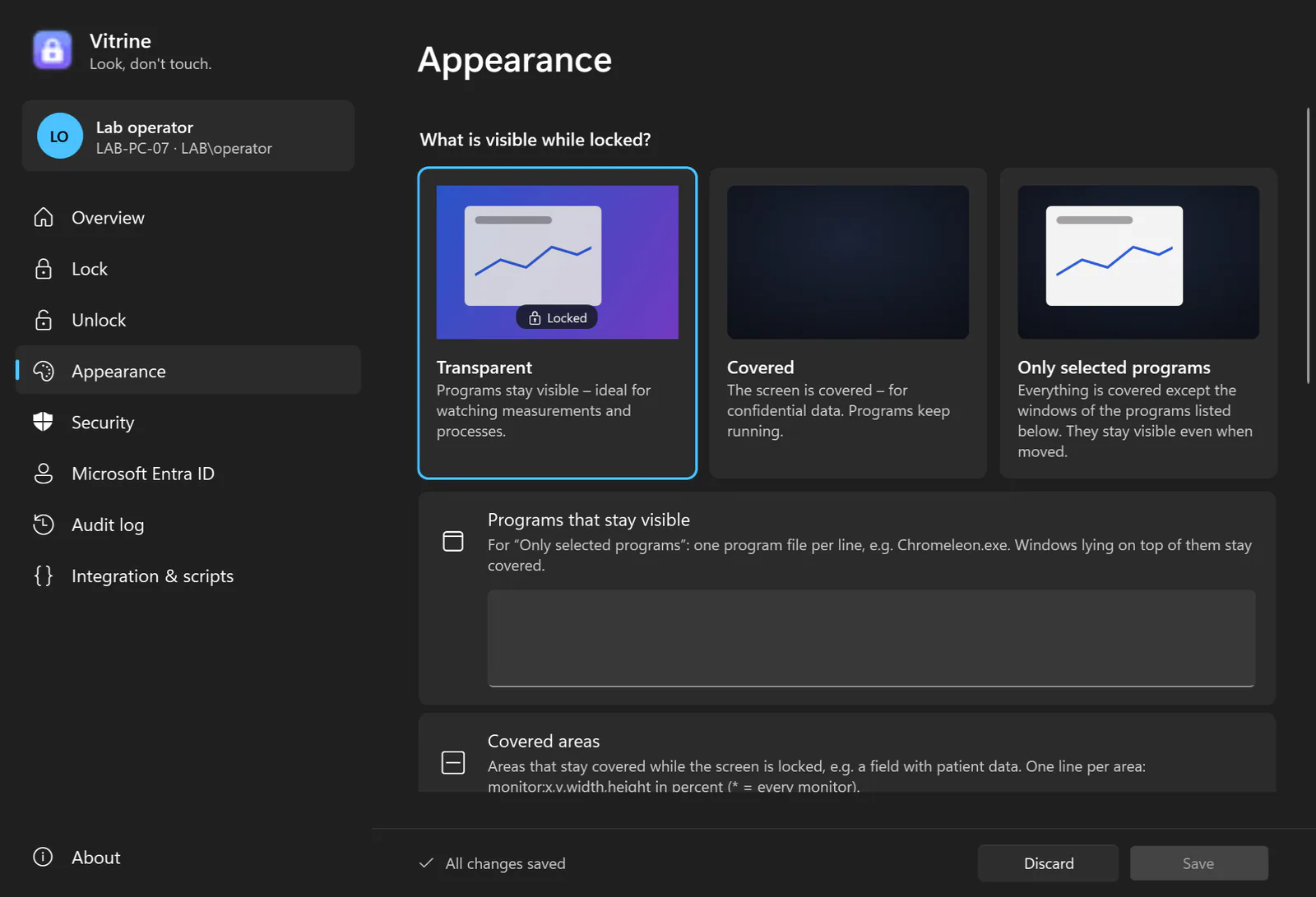
Transparent or covered What is visible while locked? Transparent – programs stay visible, ideal for watching measurements and processes – or covered for confidential data. Plus dimming, notice text and clock. -
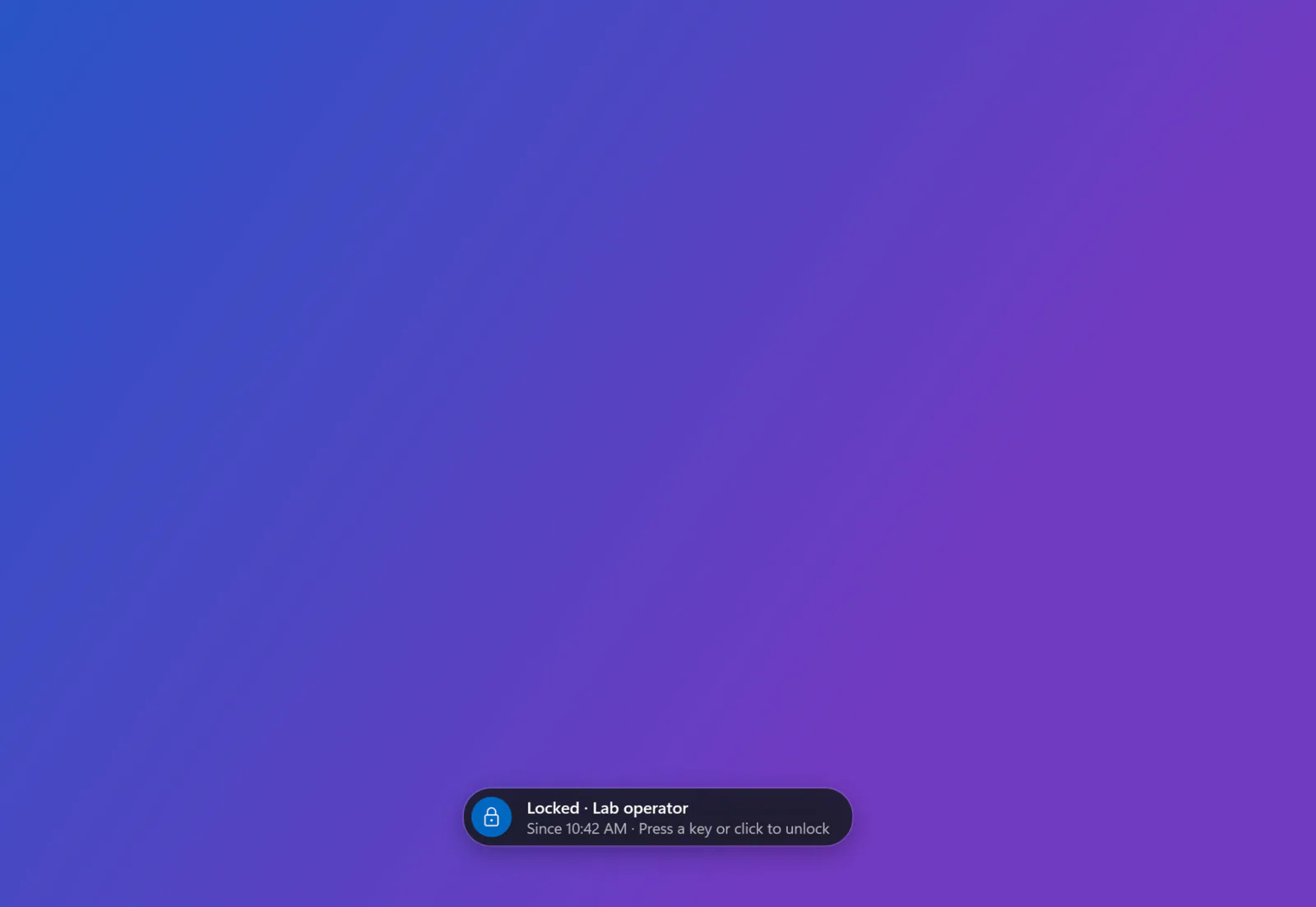
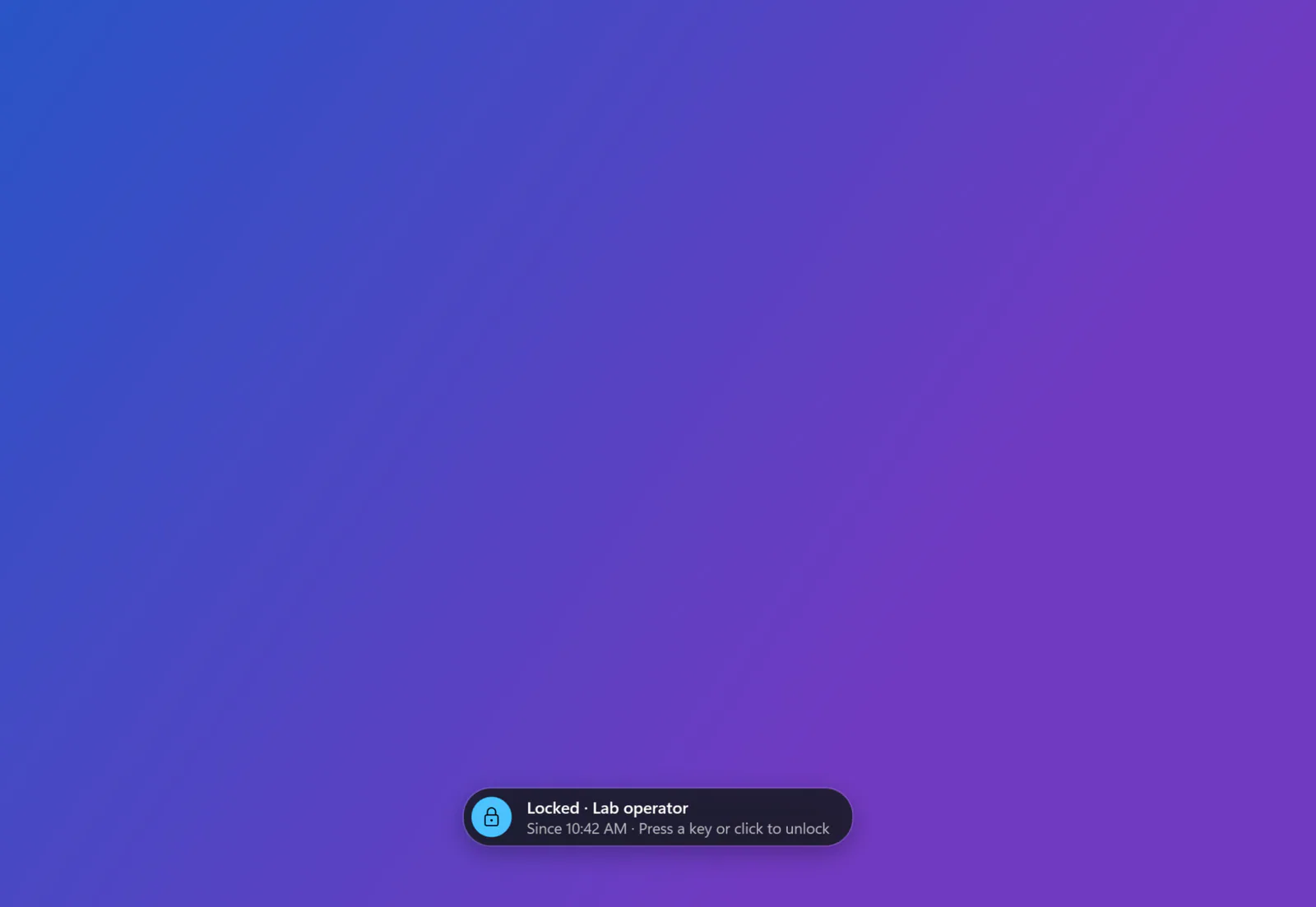
Lock transparently Programs stay visible and keep running. One overlay per monitor, placed per monitor DPI, with an optional notice text. -
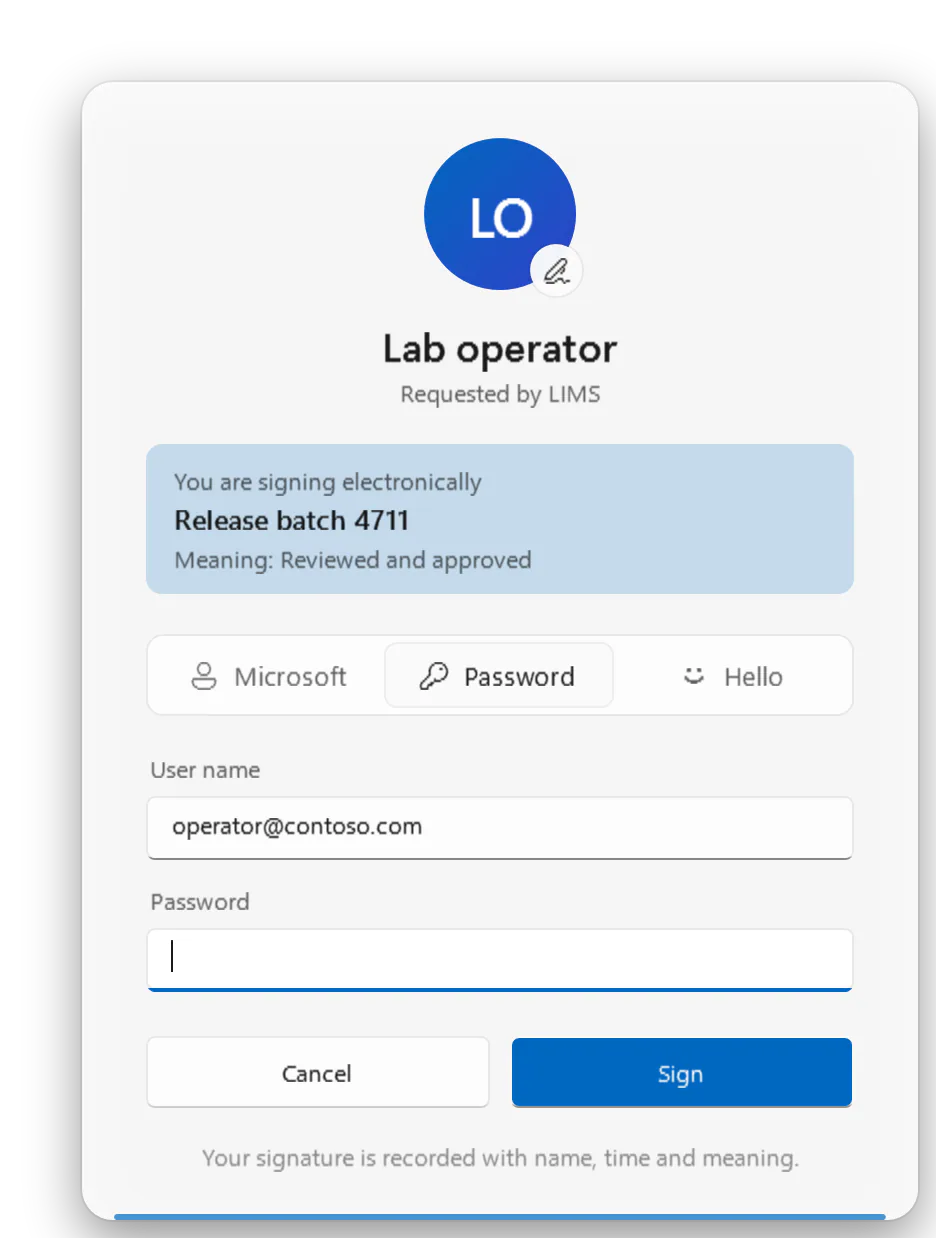
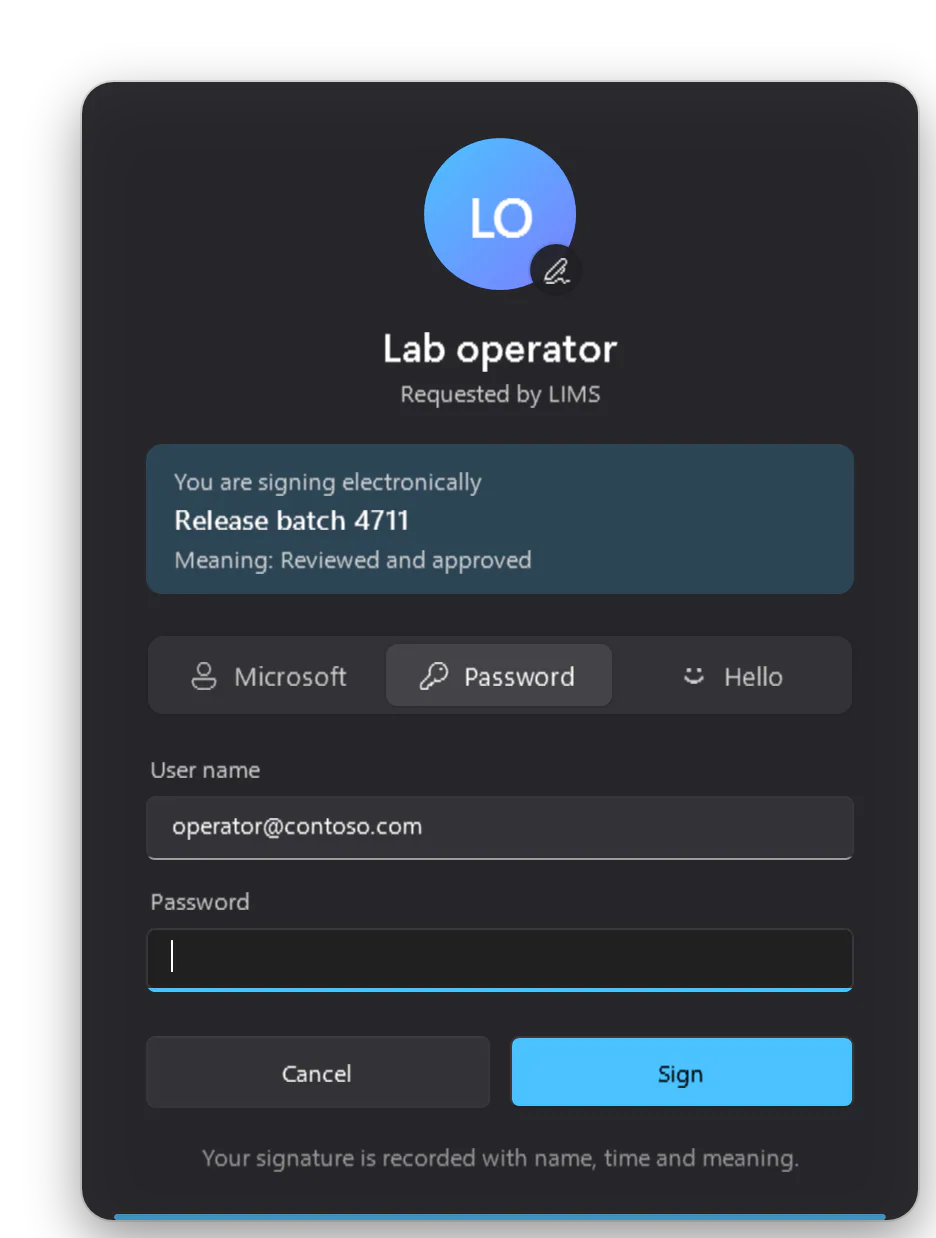
Electronic signatures Line-of-business applications request a signature over a local interface. Person, time, reason and meaning go into the audit log. -
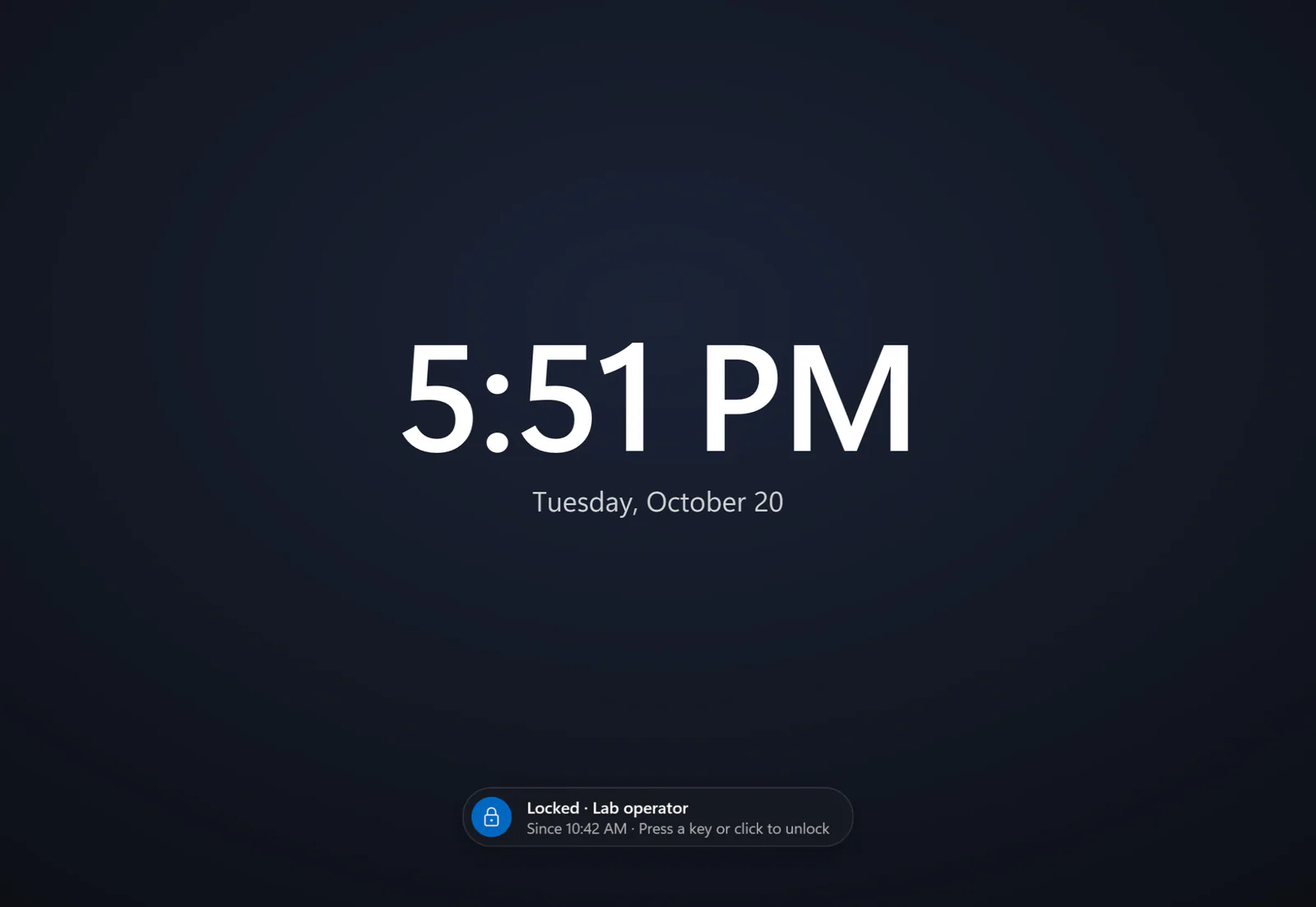
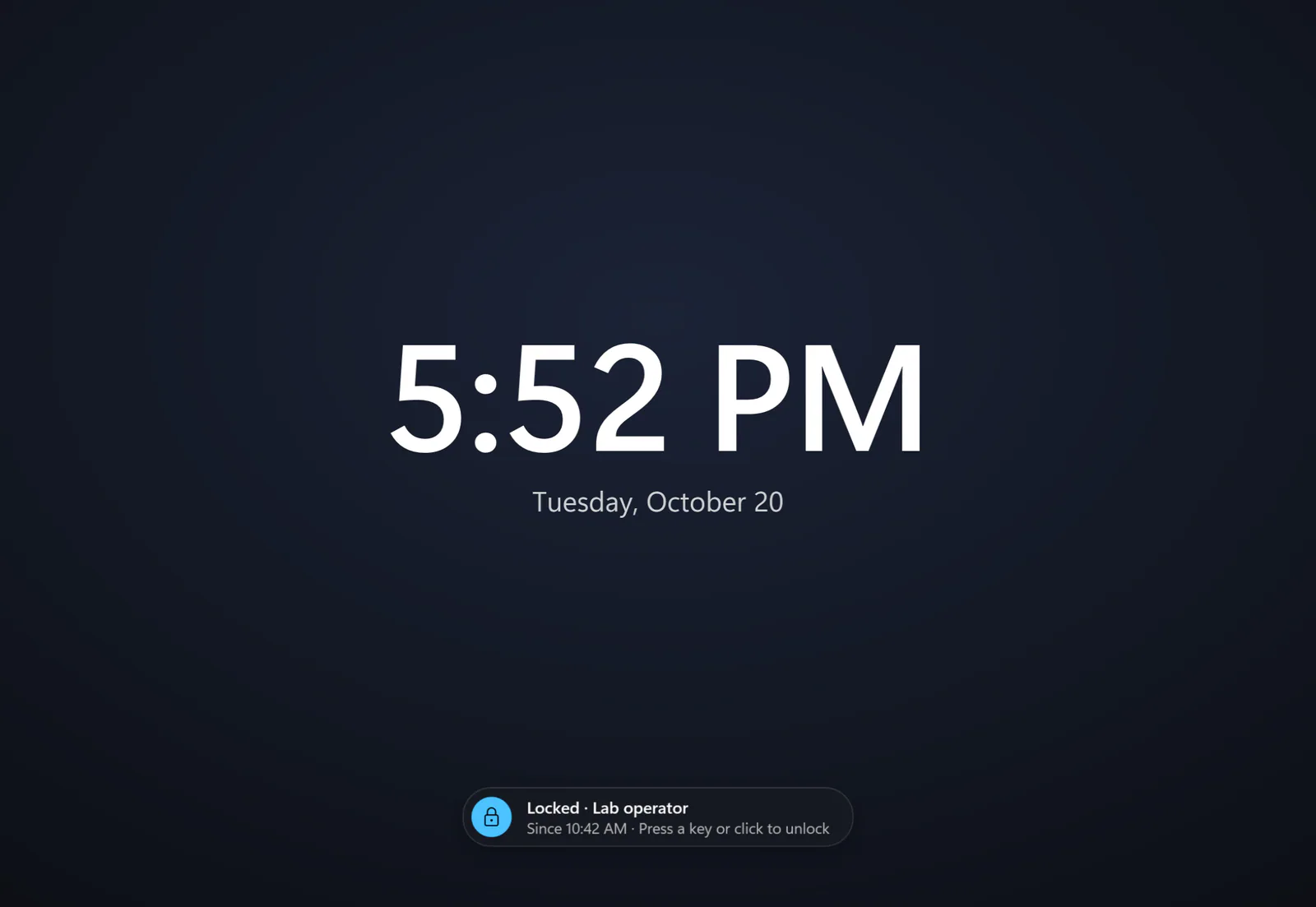
Lock with the screen covered For confidential content: a large clock instead of the desktop. Programs still keep running. -
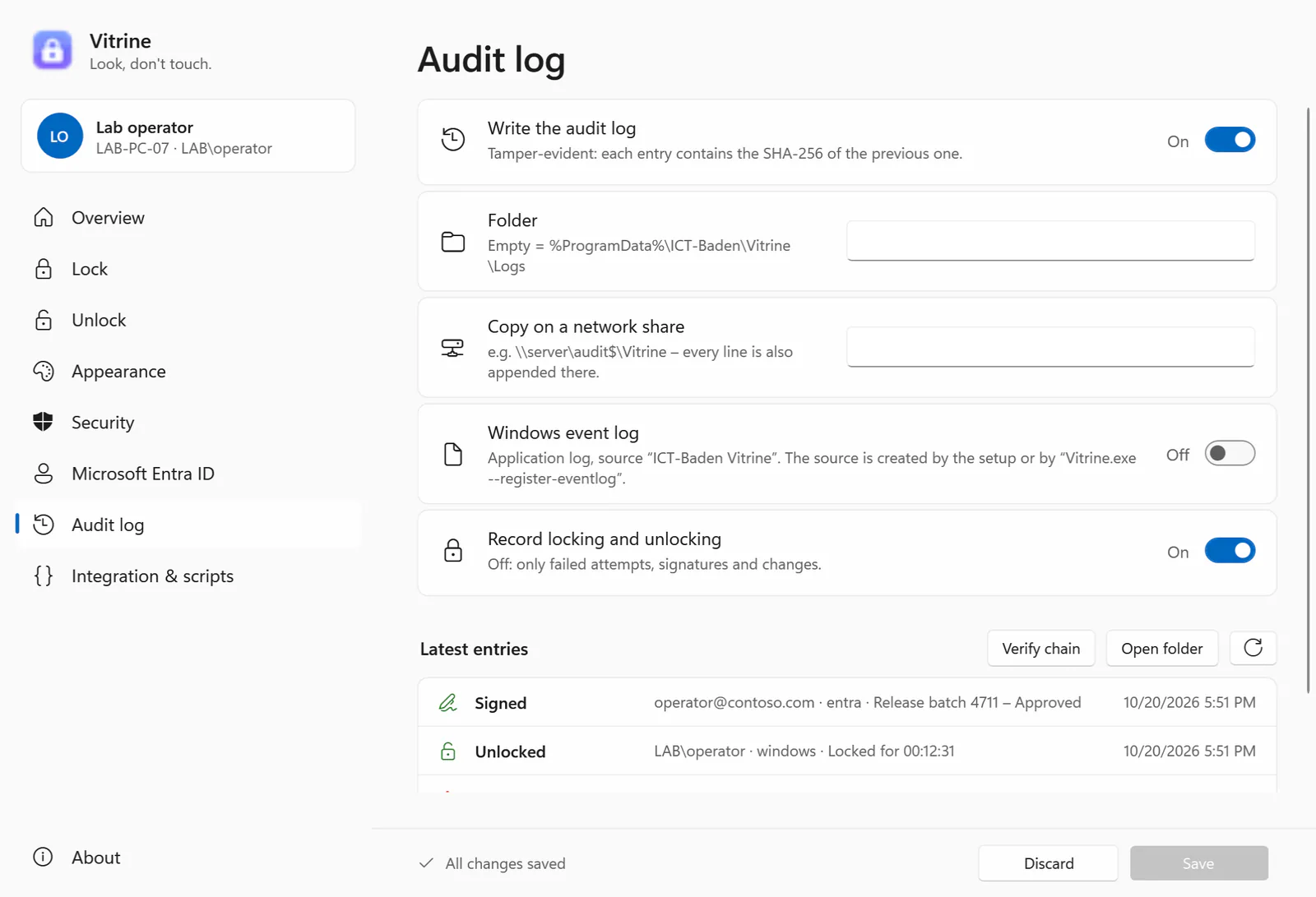
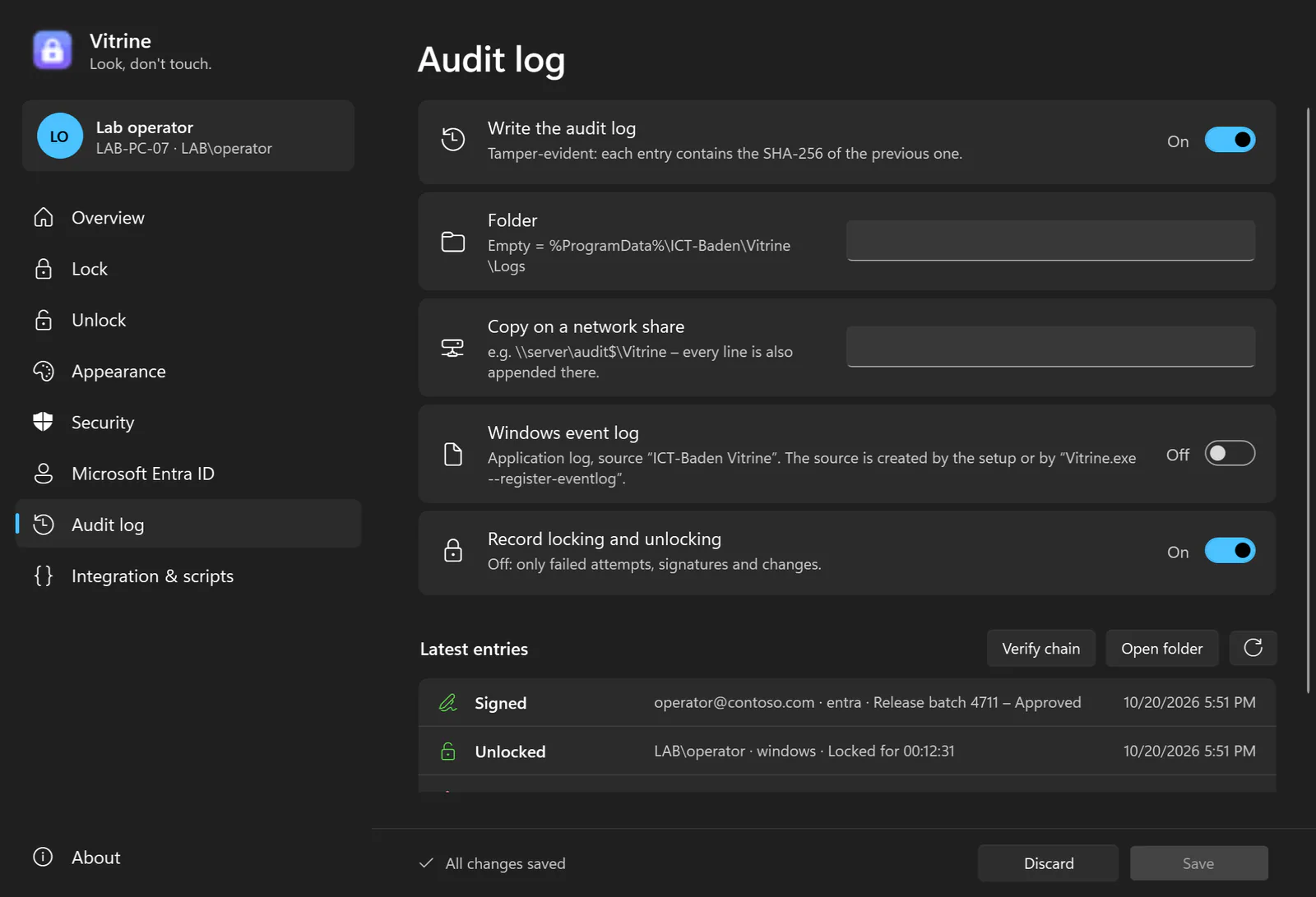
Audit log signed by the service Every lock, unlock, failed attempt and signature with time (UTC), person and method. The service signs every entry (ECDSA) and the chain makes changes visible; a copy on a network share and the Windows event log add independent records. -
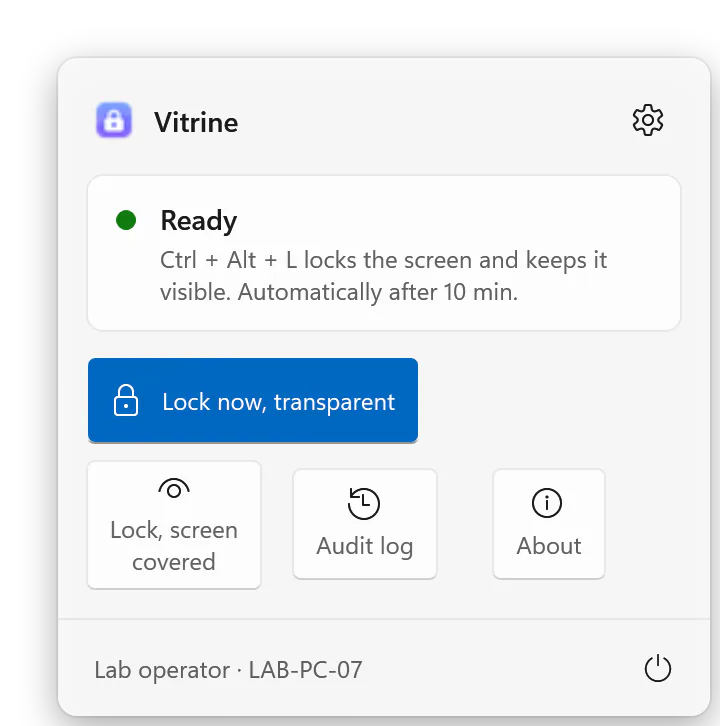
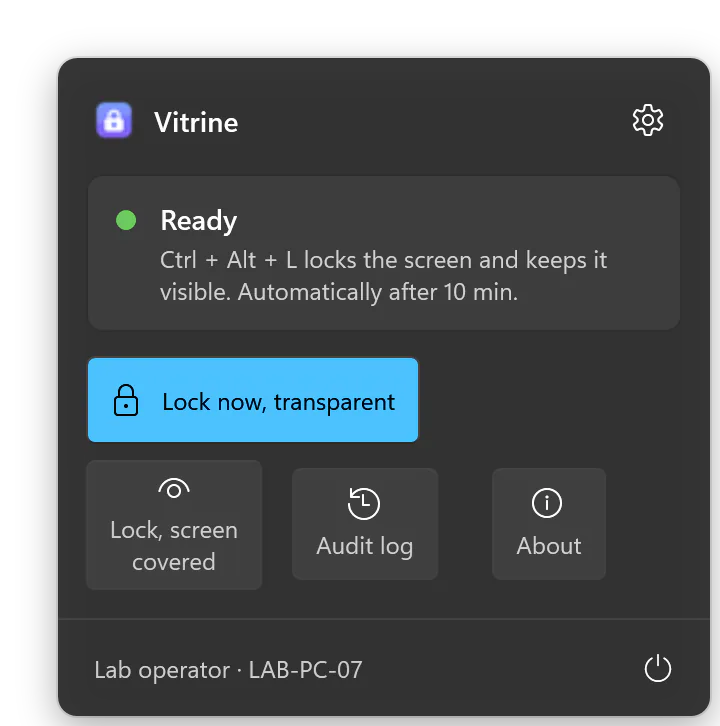
Notification area A flyout with status and lock buttons. Light, dark and high contrast, Windows or company accent colour.
Frequently asked questions
How do I lock keyboard and mouse while the screen stays visible?
With a see-through screen lock such as Vitrine: Ctrl+Alt+L or a click in the notification area blocks keyboard and mouse, while the screen stays visible and every program keeps running. The Windows lock (Win+L) shows the lock screen instead, and nothing of the workstation stays visible.
Does a running measurement continue while locked?
Yes. Vitrine acts only as an input lock: programs keep running and stay visible, optionally with a notice such as “Measurement running – please do not touch”. The screen stays on, without screen saver or sleep.
Does Vitrine work as an Entra ID lock screen (formerly Azure AD)?
Yes. The Microsoft sign-in runs in Vitrine’s own sign-in window, which remembers nothing between people: FIDO2 security keys and passkeys through the Windows security dialog, Authenticator, MFA – on a shared workstation anyone in a local or Entra group unlocks with their own key. It needs an app registration in your tenant, the optional claim auth_time and the network; Conditional Access conditions that need the device identity are not met by the window.
Can I unlock with a FIDO2 security key without Entra ID and offline?
Yes. A person with the registrar role registers the key for Vitrine – locally or in Active Directory for all computers of the domain. The Vitrine service issues the challenge, verifies the key’s answer and resolves the person and their groups; without a domain controller the groups read last apply for a configurable time. It needs Windows 10 version 1903 or later, the service and a key with a PIN.
Who may unlock?
You decide: the signed-in person, administrators, groups and Entra app roles, single accounts or any valid account – combinable and restrictable to domains. For emergencies there is a sign-in for defined groups with the Windows password and a mandatory reason, which always goes to the Windows event log as well.
Can Ctrl+Alt+Del be blocked?
No application can do that. While locked, Vitrine hides Task Manager, Sign out, Change a password, the power button and Lock and switches Win+L off; Switch user remains available – it shows the Windows sign-in screen and does not change the running programs.
Can Vitrine be deployed with Group Policy or Intune?
Yes. The MSI installs silently with msiexec /i Vitrine-x64.msi /qn, and the ADMX/ADML templates bring 76 policies for Group Policy and Intune – tenant, application ID, who may unlock, roles, security keys, lock mode, the action after failed attempts and more.
How do I check that the audit log is unchanged?
With Vitrine.exe --verify-log <file>: it verifies signatures, chain and anchors and reports inserted, changed, removed or reordered lines, a cut-off end, and deleted or swapped files. The public key for reviewers comes from --export-audit-key, without administrator rights. This applies with the service; without it there is only a hash chain without a key.
Is Vitrine compliant with 21 CFR Part 11 or EU GMP Annex 11?
Vitrine provides building blocks – access control, an audit trail signed by the service, signatures with a meaning, roles and an authorization report, automatic locking – but it is not a validated product. ICT Baden makes no compliance claim; validation and risk assessment are up to the operator.
Is Vitrine free? Does it send data?
Vitrine is free of charge under the MIT licence. It sends no data to ICT Baden: no telemetry, no crash reports, no update check. Entra ID sign-ins run between Vitrine and Microsoft. The download follows with the public release.
Is there a free alternative to commercial transparent screen locks?
Yes, Vitrine does the same job: keyboard and mouse are blocked, the screen stays visible and programs keep running. Vitrine is free of charge under the MIT licence and can be deployed with an MSI, Group Policy and Intune. It is currently a pre-release.
Can Vitrine replace the transparent screen lock of an authentication suite?
Only the transparent lock part: Vitrine blocks input while the screen stays visible and unlocks with Microsoft Entra ID, the Windows password, Windows Hello or a security key. Vitrine does not reproduce the other functions or card-reader integrations of such a suite.
Related products


Microsoft, Windows, Entra, Intune, Microsoft Edge and Windows Hello are trademarks of the Microsoft group of companies. They are named only to describe compatibility.
Contact
Interested in Vitrine?
Tell us what you would like to use the product for – we will get back to you personally.